LAYERSAKE PRINT FARM
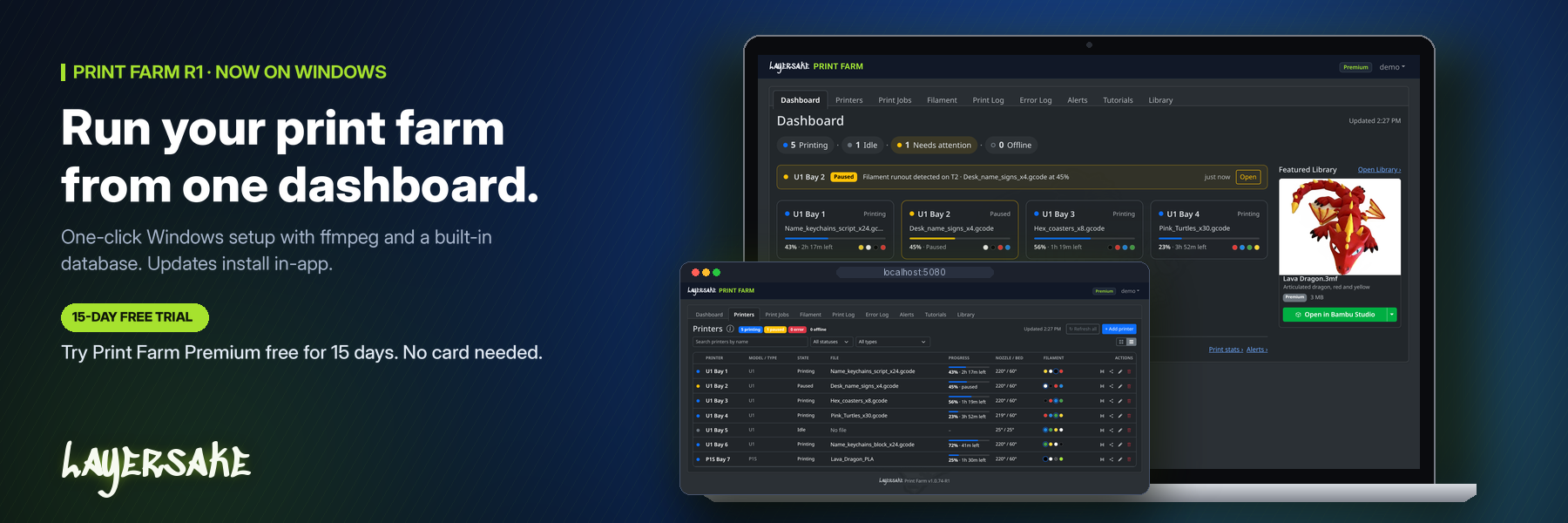
Layersake Print Farm is a Windows app that puts your 3D printers on one dashboard, with alerts, a print log, job tracking and the Layersake 3MF Library. Here are the questions people ask most.
Print Farm connects to printers over your local network. There are three connection types:
Every brand is welcome. If your printer isn’t listed, try the live demo and tell us what you run.
Monitoring is read-only. Print Farm reads status, progress, temperatures, filament and cameras, and doesn’t pause, stop or change prints. The one exception is Send to printer on Premium, which uploads a saved print file and starts it only when an admin or operator confirms it on a review screen. Every send is logged on the job. Send to printer is a newer feature, so check the first prints on each printer model.
Print Farm runs as a Windows service, so IIS isn’t needed. Open it in any browser at http://localhost:5080, or from other devices on your network using the PC’s name or IP address.
A free 15-day Premium trial starts when you create your admin account after installing. The app shows how many trial days are left, with an Upgrade link. There’s one trial per computer, so uninstalling and reinstalling doesn’t start a new one.
Print Farm switches to the free Basic plan. Nothing is deleted. Your printers, jobs and history stay. If you have more than 2 printers, the extras wait behind a lock until you upgrade, and older history comes back as soon as you’re on Premium again. If you start a Layersake Patreon subscription during the trial, Premium replaces the trial.
The Library is a collection of Layersake 3MF files that you can browse inside Print Farm. Premium and Commercial users can download files or open them straight in Bambu Studio or Snapmaker Orca. Premium is what lets you download, print and sell prints of Layersake 3MF Library files. On Basic and during the free trial you can browse names, covers and pictures, but opening and downloading files needs Premium.
Go to Settings > Licensing. Choose Unlock Premium with Patreon and link your active Layersake Patreon subscription. Premium is included with a Layersake Patreon subscription. License keys are only for Commercial: choose Enter license key to paste one. Each license works on a limited number of computers. To move a license to a new PC, use Release this computer on the old one first.
No. Any plan, Basic, Premium or Commercial, can be used for a business, including selling prints of your own or anyone else’s designs. Premium is what lets you download, print and sell prints of Layersake 3MF Library files. Commercial isn’t needed for business use. It’s for shops that want its extras: unlimited printers, more users with roles, API keys, white-label customer pages and emails, and priority support tickets. Non-profit schools and classrooms can ask for a free license.
Print Farm iPhone and Android apps are in development. They’ll sign in with your Print Farm username and password and get push alerts on Premium and Commercial. We’ll announce them here when they’re available to download.
Print Farm installs on your own PC. Your printers, jobs, history, settings and camera snapshots stay in its data folder (C:\ProgramData\Layersake Print Farm\data by default), in the built-in database or in your own SQL Server or MySQL. Saved passwords and alert secrets are encrypted.
The app talks to the Layersake license server for licensing, updates, the free trial, Library files and phone alerts. It sends:
No printer lists, print history or usage stats are sent.
Go to Settings > About and click Check for updates. When a new version is available, an admin can click Download & install. The app checks the download, installs it and restarts by itself, and your data, database settings and port are kept. You can also run a newer installer from the Downloads page over your current install.
Use Send Feedback in the username menu inside the app. On Commercial it opens priority support tickets: the app version and install details are attached automatically, and replies show in the app and are emailed to you.
Yes. Open the live demo and sign in with demo / demo. It resets every time someone signs in and every 30 minutes, so feel free to click around.