LAYERSAKE PRINT FARM

Print Farm Features

Your whole farm in one place

Layersake Print Farm is a Windows app that runs on your own PC and opens in any browser on your network. It keeps your printers, jobs, customers, filament and history together, whatever brands you run. Features are marked Basic (free), Premium or Commercial where a plan is needed. Each plan includes everything in the plans before it.
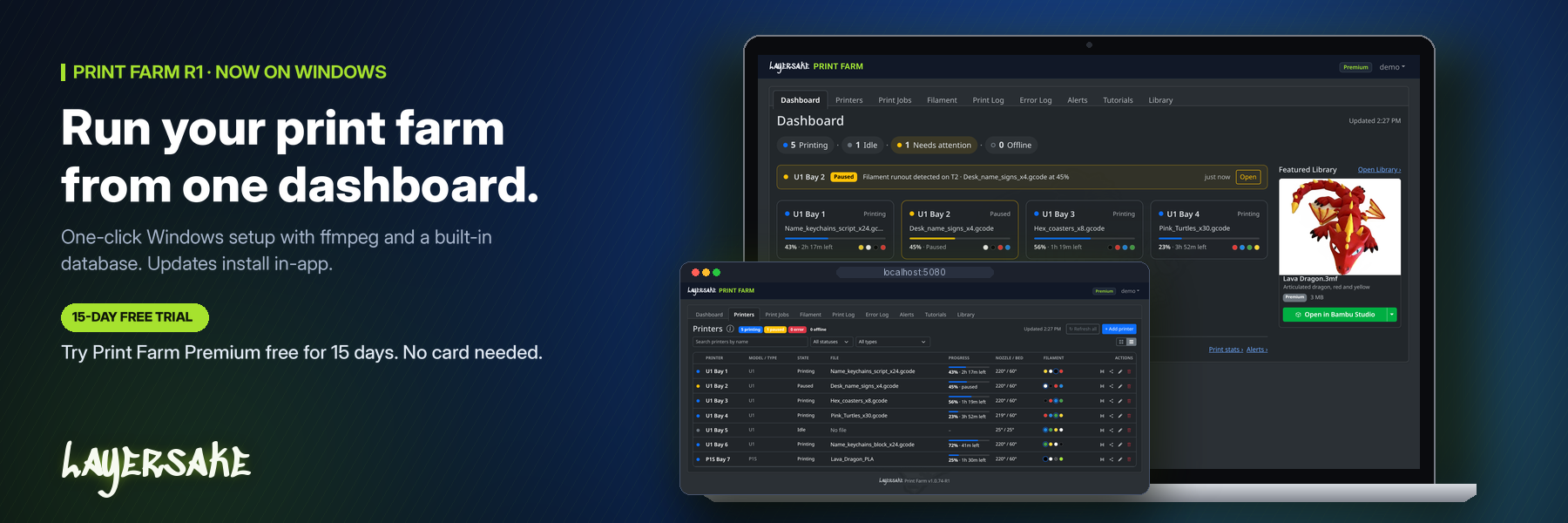
Print Farm web dashboard on a laptop, with printer status cards above a table of printers and their progress

Live dashboard and printer monitoring

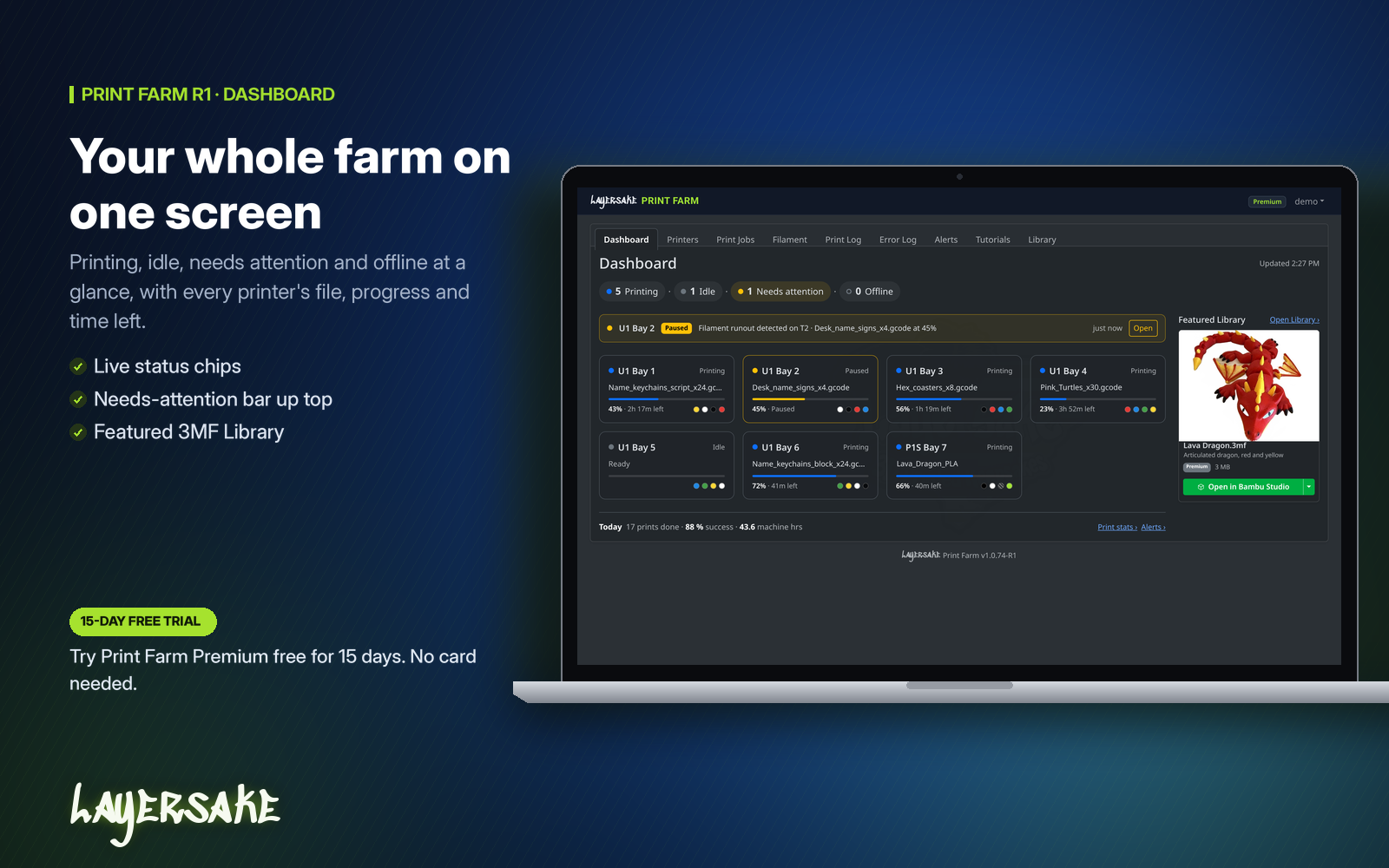
  • Summary at a glance: live counts of printers that are printing, idle, offline or need attention. A Needs attention box appears only when a printer is paused, in error, failed or offline, with a link straight to it.
  • Printer cards: name, model, status, file, progress with time left, and filament dots. Hover a card for nozzle and bed temperatures, the job and the current object. The grid refreshes itself every 5 seconds.
  • Card or List view: switch the Printers page between cards and a compact table with one row per printer. Click a row to open that printer’s full card. Your choice is saved to your account and works on phones too.
  • Search and filters: find printers by name, and filter by status (printing, paused, idle, offline, error) or printer type.
  • Today line: prints done, success rate and machine hours, with links to print stats and alerts.
  • Light and dark themes, saved to your account so they follow you to any device.
  • In-app pop-ups: failed, paused and offline printers pop up on every open page with a Go to printer button. You can mute them in any browser.
Print Farm dashboard showing printing, idle and offline counts, a filament runout warning and seven printer cards with progress bars

Cameras

  • Watch each printer’s camera on its card, or click for a large view. Video is passed through the app, so the printer’s own address is never shown to the browser.
  • Moonraker printers: finds the printer’s webcam automatically, including the Snapmaker U1’s built-in camera, or use your own camera URL.
  • Bambu Lab: RTSPS streams on X1, X2D, H2 and P2S models (using the included ffmpeg), and the JPEG stream on P1 and A1 models. Turn on LAN Mode Liveview on the printer.
  • Creality OS: shows the printer’s camera stream.
  • Snapshots: optional timed stills of printers on customer jobs, plus a picture at start, pause and finish. You choose the interval, the storage folder (including a network share) and how long to keep them. Deleting snapshots needs Premium.

Filament on the printer

  • Snapmaker U1 cards show the filament on each of the 4 toolheads.
  • Bambu Lab cards show every AMS unit and slot plus the external spool: color, material, remaining percent when the printer knows it, and which slot is feeding the nozzle.

Print jobs and customer orders

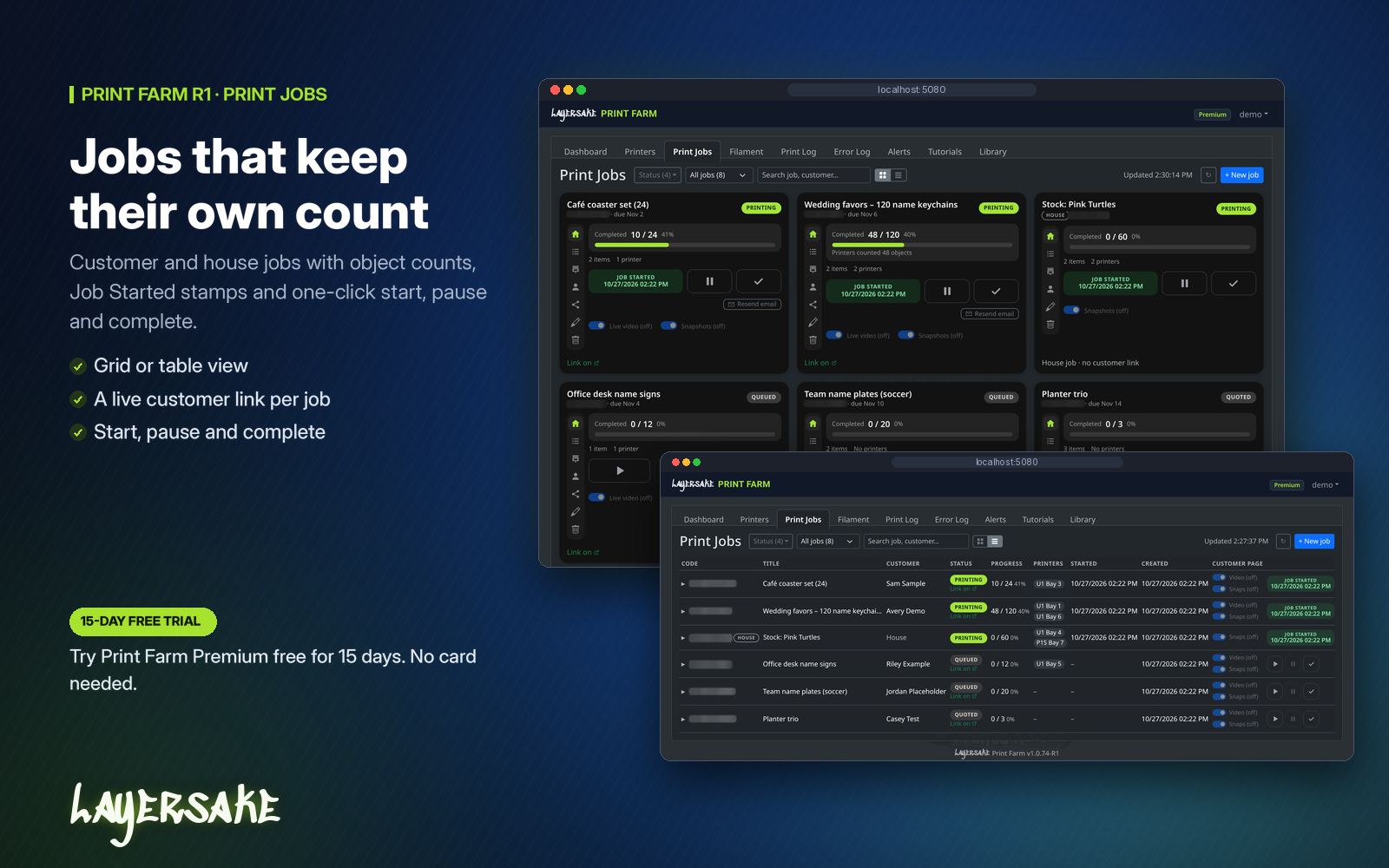
  • Print Jobs tab: one card per job, showing status, customer, items and the assigned printers with their live progress. Switch between grid and table views. Jobs are sorted by status and then by due date.
  • Statuses: Quoted, Queued, Printing, On hold, Complete, Shipped and Cancelled, with Start, Pause and Complete buttons. These change the job only and never send anything to a printer.
  • Line items: each job lists what’s being printed: name, quantity, color, material, SKU and notes. You can reorder and edit them.
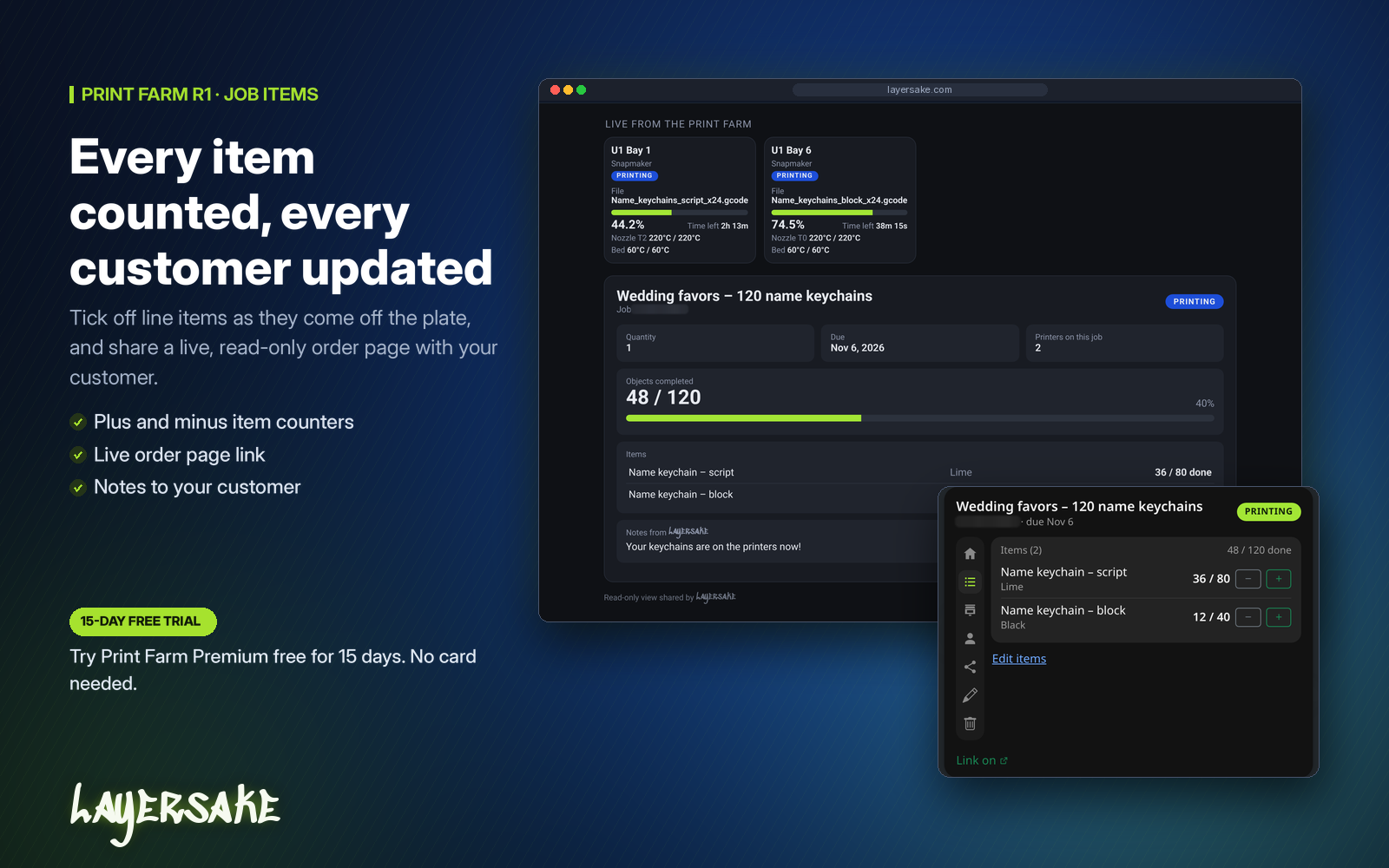
  • Object counting: track objects completed against objects required with quick +1 and −1 buttons. Snapmaker U1 plates can be counted automatically when they finish (Bambu Lab isn’t counted automatically yet).
  • Auto-pause: when an assigned printer pauses, its job moves to On hold, and it moves back to Printing when the printer resumes.
  • House jobs: track prints for your own stock with the same items, counting and printers, but no customer details, emails or public page.
  • Customer type-ahead: start typing a name, email or phone number to fill in a returning customer.
  • Job photos: every snapshot and phone photo of a job in one place. Phone photo uploads from the app need Premium.
Print Farm print jobs page in grid and table views, with customer and house jobs, completed counts and status

Customer pages and emails

  • Customer job page: a private link, with no login, that shows the order, its items, live printer progress and a gallery of finish photos. Live camera video on customer pages is optional and off by default. You can revoke or replace the link at any time.
  • Printer share links: share one printer’s current print, with links that last until the print finishes, 24 hours or 7 days.
  • Customer emails (through your own email server): a “now printing” email sent once per job, and an “order complete” email with the items, up to 12 finish photos and a View your order button. You can set the subject, message and reply-to address.
  • Website order tracking: your website can look up an order by job code and customer email using a track-only API key (all plans).
  • Safe to share: customer pages never show printer addresses, settings, controls or your internal notes.
Customer order page showing live printer progress and 48 of 120 objects done, beside job item counters with plus and minus buttons

Alerts wherever you are

Get told when a print finishes, fails or pauses, or when a printer goes offline or comes back. Choose which events go to which channel in one grid, and send a test alert to check your setup. Every alert is off until you turn it on.

  • Email (Basic): branded HTML alert emails with the printer, file, progress, temperatures, filament and the error reason.
  • ntfy (Premium)
  • Text messages through your carrier’s email-to-text gateway (Premium)
  • AWS SMS through your own Amazon account (Premium)
  • Grok Bot webhook (Premium)
  • Push to the Print Farm phone apps (Premium): sent through the Layersake license server, so there are no keys to set up. The phone apps are still in development.

The Alerts tab keeps a searchable feed grouped by day. Each alert shows the printer, file, job, how it was delivered and a snapshot when there is one. Known printer error codes, such as Bambu Lab HMS codes, come with a plain-language explanation.
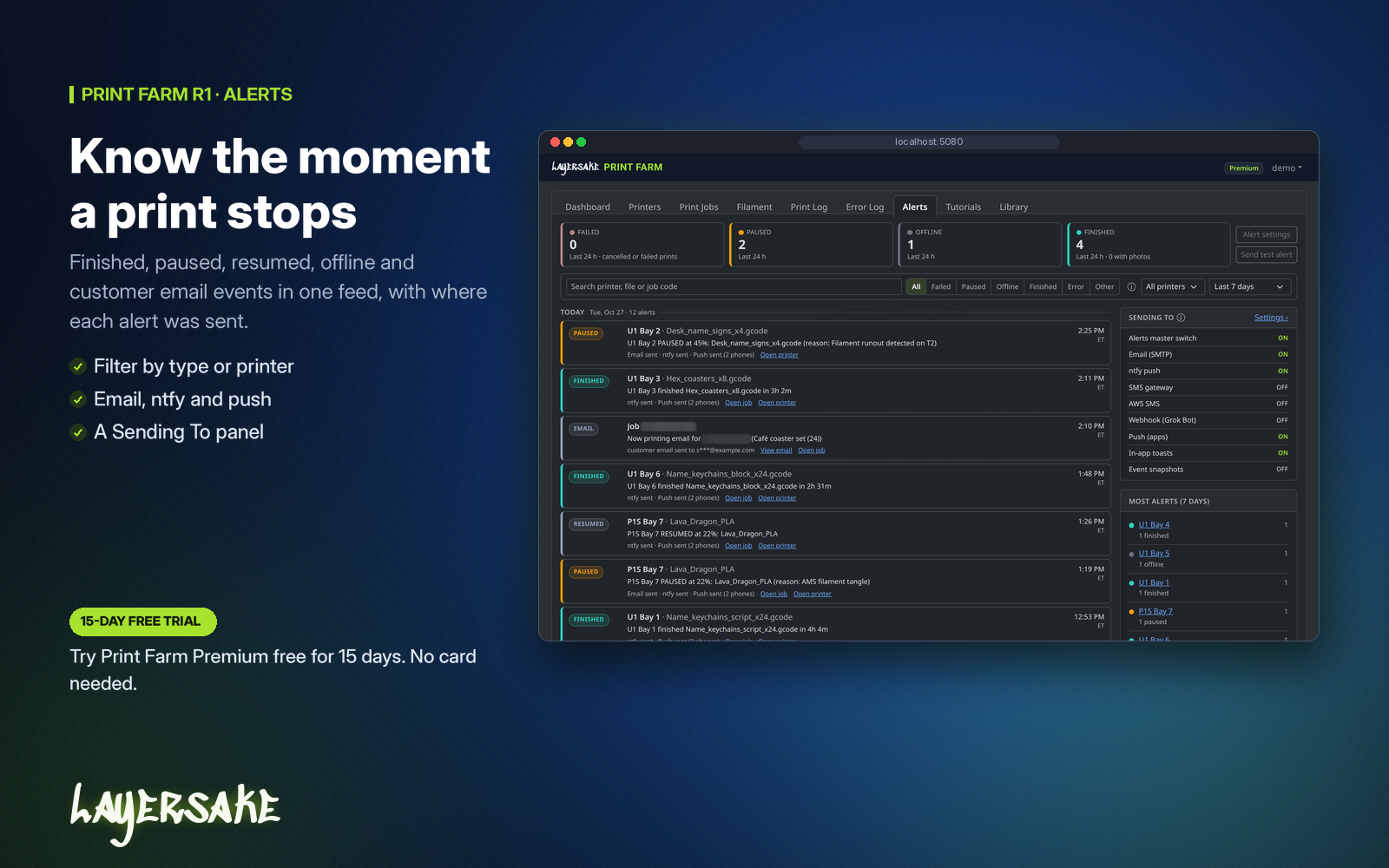
Print Farm alerts feed with failed, paused, offline and finished counts, event filters and the day's alerts

Print log and history

Print Log: every print with stats, plus CSV export.

Error Log: every error episode, searchable by date.

History: Basic shows the last 7 days. Premium shows your full history. Older history is never deleted, so it comes back when you upgrade.

Filament inventory, labels and scanning

Scan first: a USB or Bluetooth barcode scanner works straight away. You can also scan with a phone or laptop camera (UPC, EAN, Code 128, Code 39 and QR), with focus, zoom and torch controls.

Smart barcode matching: UPC-A, UPC-E, EAN-13 and codes that lost their leading zeros all find the same product.

Inventory: one row per filament, with quantity on hand, search, filters and low-stock badges. An unknown code opens Create filament, which suggests the brand, type and exact color.

Built-in color catalog: 35 brands and 875 brand colors to start from, all editable.

Spools and In-Use tracking: each roll gets its own QR label. Mark rolls in use, and end a roll when it’s empty.

Bulk scan (Premium): keep scanning and each code adds one roll, with Undo last. Basic scans one code at a time.

DYMO labels: print QR, brand, color and type labels through DYMO Connect, with optional auto-print and network print stations.
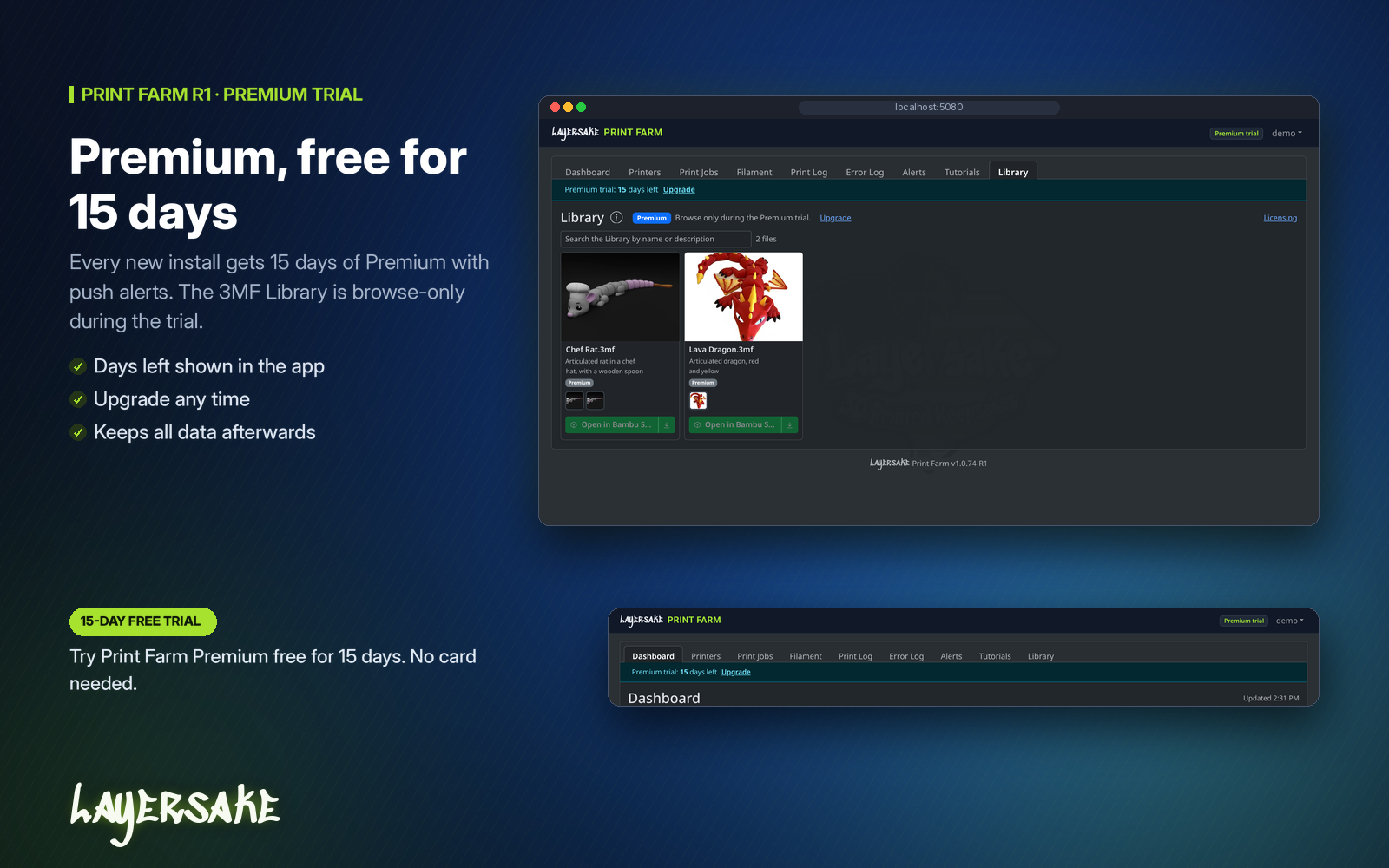
3MF Library and saved print files

  • Layersake 3MF Library: browse Layersake’s 3MF files with covers, pictures and descriptions, and search them. Anyone can browse. Opening a file in Bambu Studio or Snapmaker Orca, or downloading it, needs Premium. Premium is what lets you download, print and sell prints of Layersake 3MF Library files.
  • Saved print files (Premium): when a job’s print starts, the file the printer is running is saved to the job with its thumbnail and the model it was sliced for, from Snapmaker U1 printers and Bambu Lab printers. Download them any time to reprint.
  • Send to printer (Premium, newer feature): pick a saved file and one or more idle printers of the right model, check the confirm screen, then send and start. It’s only for admins and operators, and every send is logged on the job. This feature is new and hasn’t been widely tested on real printers yet, so watch the first prints.
Print Farm Library tab listing 3MF files with cover images, under a banner showing Premium trial days left

Works with your printers

Bambu Lab: X1C, X1E, X2D, P1S, P1P, P2S, A1, A1 mini, H2D, H2S and H2C over the printer’s local LAN connection, with status, AMS filament, cameras and error codes. Monitoring sends only a status request and never changes a print.

Snapmaker and Klipper: Snapmaker U1 through Moonraker. Other Klipper printers running Moonraker, including rooted Creality printers, can use the same connection.

Creality OS (new): K1, K1C, K1 Max, K2 Plus, Hi and Ender-3 V3, read-only status and camera. Built from Creality’s public documentation and not yet tested on a real Creality printer.

Every brand welcome: printer limits are 2 on Basic, 25 on Premium and unlimited on Commercial. Printers over your plan’s limit wait behind a lock and are never deleted.

Users, API and branding

Secure sign-in: hashed passwords, a lockout after repeated wrong passwords, “remember me”, and email password reset when your email server is set up.

More users and roles (Commercial): admin, operator and viewer roles. Viewers can see everything but can’t change anything.

API keys (Commercial): full access to the Print Farm REST API, with interactive documentation in the app. Track-only keys for website order tracking work on every plan.

White-label (Commercial): your business name, accent color and logo replace the Layersake branding on customer job pages, share links and customer emails.

Priority support tickets (Commercial): send tickets from Send Feedback in the app and see replies there.

Tutorials: write your own how-to guides for your team, with optional video and step-by-step instructions.

Built to keep your data safe

Runs on your own PC: your data stays in the app’s data folder, in the built-in database or your own SQL Server or MySQL. Saved passwords and alert secrets are encrypted.

Trash: deleted jobs, printers, users, filament and more go to Trash, where they can be restored for 30 days by default.

Backup and restore: download a full backup, restore it with a safety copy saved first, or move your data to SQL Server or MySQL without changing the original.

Plan changes never delete data: printers, jobs and history stay if a plan or trial ends.

The app contacts the Layersake license server only for licensing, updates, the Library and push alerts. See the FAQ for what’s sent.
Easy install and updates

  • One Windows installer for Windows 10 and 11 (64-bit), with .NET and ffmpeg included. It runs as a Windows service that starts with your PC, so IIS isn’t needed.
  • Typical or Advanced setup: use the built-in database, or choose SQL Server or MySQL, your port and your folders.
  • In-app updates: go to Settings > About > Check for updates, then Download & install. Your data and settings are kept.
  • Safe uninstall: it asks before removing your data, and keeps it by default.
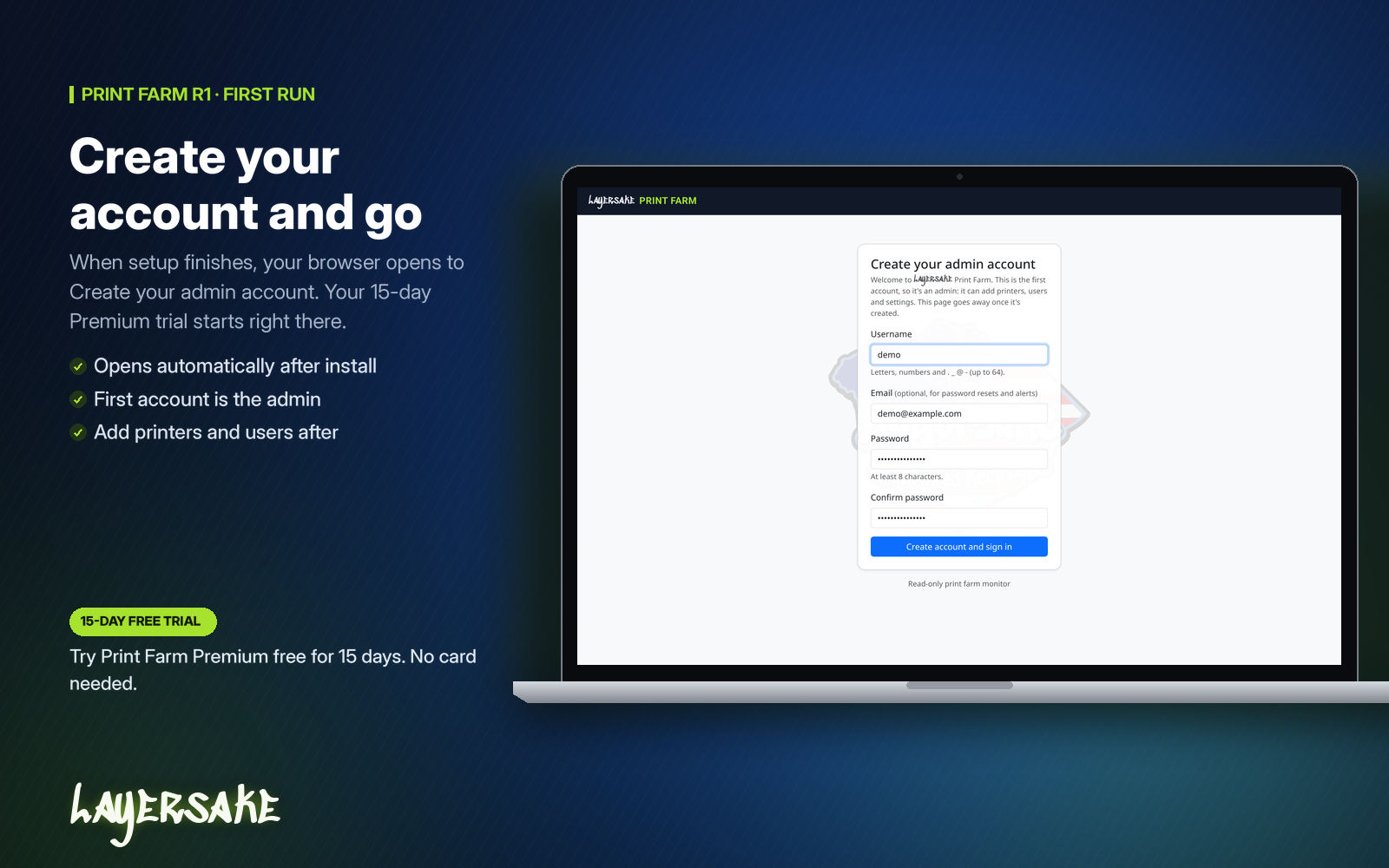
Print Farm first-run screen in a browser with the form to create the admin account

Plans and the free trial

  • Basic (free): 2 printers, the dashboard, jobs and customer pages, email alerts, single filament scans and 7 days of history.
  • Premium: Premium is included with a Layersake Patreon subscription. It has 25 printers, the full 3MF Library, every alert channel, bulk scanning, full history, saved print files with Send to printer, and phone app sign-in. Premium is what lets you download, print and sell prints of Layersake 3MF Library files. Unlock it in the app with Patreon.
  • Commercial: unlimited printers, users with roles, API keys, white-label and priority support. See the Commercial License page.
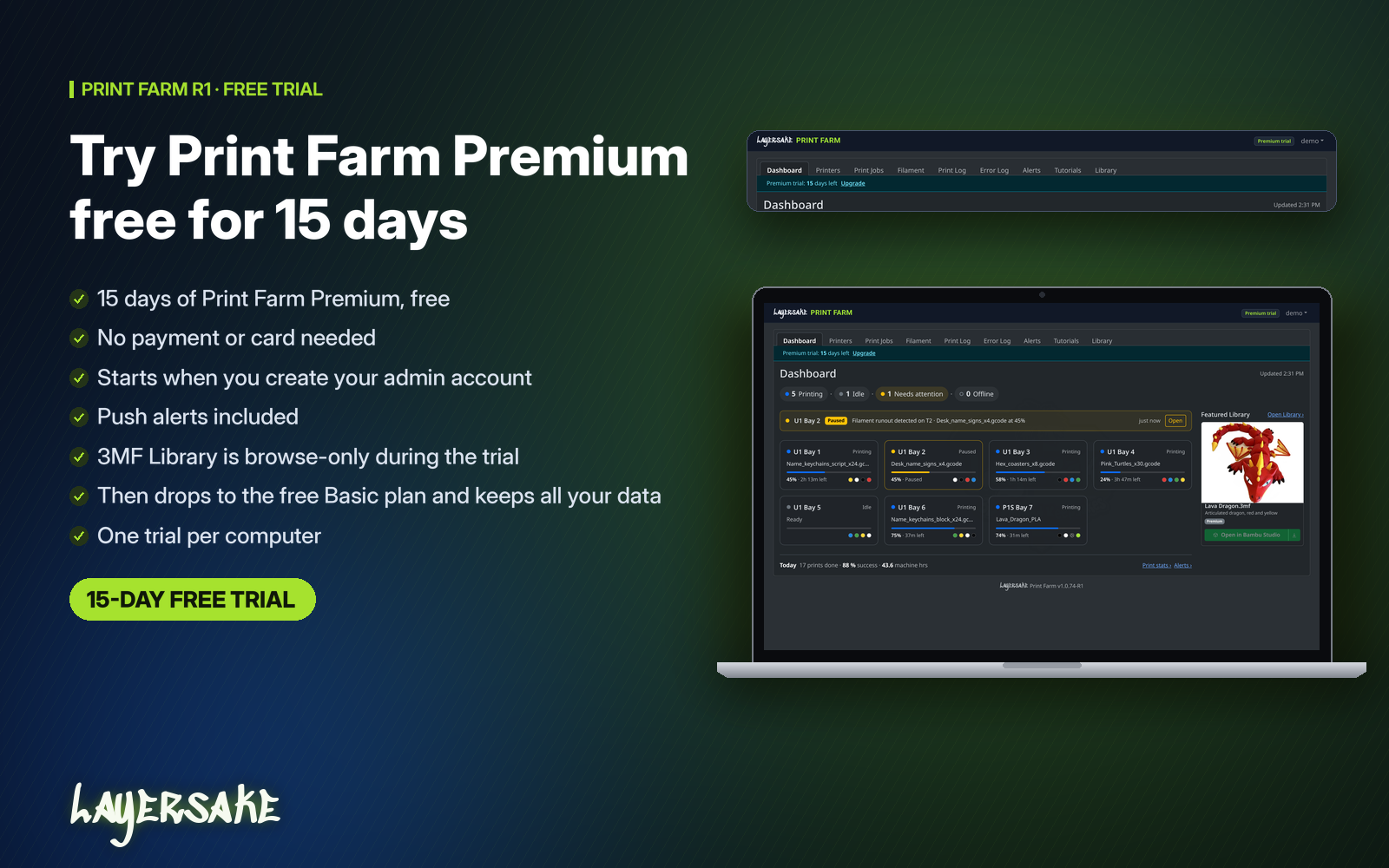
  • Free 15-day Premium trial: starts when you create your admin account. During the trial you can browse the Library but not open or download files. After 15 days Print Farm switches to Basic and keeps all your data.
Print Farm dashboard on a laptop with the Premium trial banner, next to a checklist of what the free trial includes

Phone apps (in development)

Print Farm iPhone and Android apps are in development. They’ll sign in with your Print Farm account (Premium and up) for printer status and cameras, job photos, filament scanning and push alerts. They aren’t available to download yet.
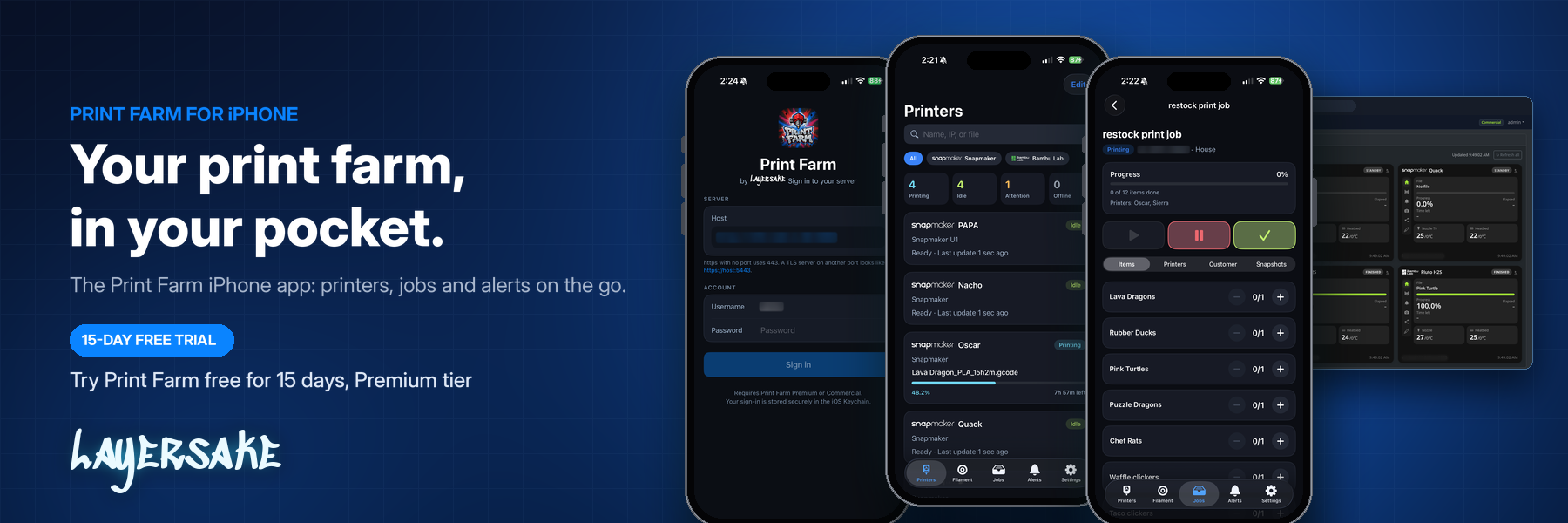
Three iPhones showing Print Farm app screens for sign-in, the printers list and a job, in front of the web dashboard

See it for yourself

Download Print Farm for Windows and start your free 15-day Premium trial, or open the live demo and sign in with demo / demo.
Company Info

© 2026 Created by OneDelve IT LLC

Back in Stock Notification We will inform you when the product arrives in stock. Please leave your valid email address below.